
When you catch a big fish while fishing, you naturally wonder how big it is, right?
But you might not have a measuring tape handy, or you might worry about getting it dirty or smelling fishy.
You often see anglers estimating the size with their fingers, saying “About how many centimeters?”
That’s where this app comes in—it lets you measure your fish’s total length using only your smartphone.
It’s not ideal for competitions where precise measurements are needed, but it’s perfect for those who just want a rough idea of the size.
If you need precise measurements, please buy a tape measure at a fishing store and measure correctly.
Using this app is simple. Just launch it, let it recognize a flat surface, then tap the fish’s head and the tip of its tail fin on the screen. You can also take screenshots.
It can measure items other than fish. Use it when some degree of error is acceptable.
*Starting with Version 2.0, we have added a new measurement method (Slide Measurement Mode). In Slide Measurement Mode, you measure the size by placing the fish between two sticks.
*Starting with Version 3.0, we have added a new measurement method (Object Recognition Mode). It automatically detects fish and measures their size. Of course, manual measurement is also supported, so you can make minor adjustments manually if you feel the automatic results are slightly off.
■ How to Use Standard Measure Mode
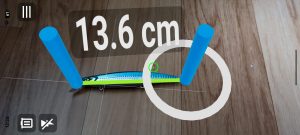
Standard Measure Mode is a mode where you place markers at the head and tail of the fish and measure the distance between them.
- Recognize the space
Launch the app and slowly scan the area around the fish you want to measure from side to side. - Place the First Measurement Stick
When a space is recognized, the recognized area is displayed with grid lines or a semi-transparent white overlay. A ⦿ is also displayed at the center of the screen; when it is green, the surrounding area has been recognized, and when it is white, the surrounding area has not been recognized. When it is green, tapping the surrounding area will display a measuring stick at that location. - Place the Second Measurement Stick
Tap the tip of the fish on the screen that is opposite the one you tapped earlier. A measurement stick will appear at the tapped location, and the distance between the two sticks will be measured. - Check the results
You can view the measurement (cm/in) on the label floating in the space. Tapping the label will open a panel at the bottom of the screen where you can also view the measurement (cm/in).
If the measuring sticks are misaligned, tapping a stick will display a circle. Slide your finger along the circle to move the stick and remeasure.
■ How to Use Slide Measure Mode
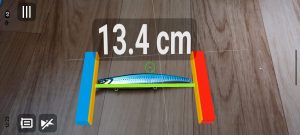
Slide Measure Mode is a mode that measures the size of a fish by positioning it between two sticks.
- Recognize the space
Launch the app and slowly scan the area around the fish you want to measure from side to side. - Position the fixed stick (blue)
Once the space is recognized, a blue guide stick will appear in the center of the screen. Align the tip of the fish with the plate on the right side of the fixed stick, then tap an empty area on the screen to lock it in place. The orientation of the fixed stick changes depending on the tilt and direction of your smartphone, so try moving your phone until it looks just right. If you cannot position the fixed bar correctly, tap icon in the upper-left corner of the screen to try again.
 - Slide the movable stick (red)
Once the fixed stick is in place, a red stick will appear on the right side. Swipe (slide) your finger across the screen to move the red stick horizontally, which will measure the distance between the two sticks. *The distance between the inner edges of the orange “plates” is measured. - Check the results
You can view the measurement (cm/in) on the label floating in the space. Additionally, tapping the label opens a panel at the bottom of the screen where you can view the measurement (cm/in).
 icon in the upper-left corner of the screen to try again.
■ How to Use Object Recognition Mode
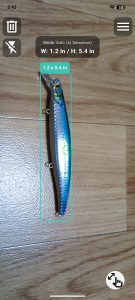
Object Recognition Mode automatically detects fish in the environment and measures their size.
- Recognize the space
Launch the app and slowly scan the area around the fish you want to measure from side to side. - When a fish is detected, a frame will appear around it. An orange frame indicates detection is in progress, while a green frame indicates the fish has been detected. If there are multiple fish on the screen, tap the target fish to focus detection on it.
- During automatic detection, the frame may sometimes be larger or smaller than the fish, so tap the “Manual”
 button and swipe the frame to zoom in or out for fine-tuning. (For the best fit, first measure automatically, then use the “Manual” button to adjust the frame to the approximate size, and finally tap the “Automatic” button again to take another measurement.)
 - Check the Results
A label appears above the frame, displaying the measurements (width × height: cm or inches). Tapping the label opens a panel at the bottom of the screen where you can view the measurements (width × height: cm and inches).
 button and swipe the frame to zoom in or out for fine-tuning. (For the best fit, first measure automatically, then use the “Manual”
  button again to take another measurement.)
■ Settings Screen Overview
You can customize the appearance and units of the measuring stick to your liking.
- General Settings
◦ Units: You can switch between cm (centimeters) and inches.
◦ Measurement Mode: You can choose which measurement mode to use: “Standard Measurement,” “Slide Measurement,” or “Object Recognition.”
◦ Ruler Length/Thickness: You can adjust the size of the ruler displayed in the AR space. It’s easier to use if you set it to be longer for measuring large fish and thinner for small fish.
◦ Line Color: You can change the color of the line drawn between the sticks to indicate the distance. This is useful when the line blends into the background and is hard to see. - Measurement Stick Color Settings
◦ Fixed Stick/Movable Stick Color: You can change the color of the sticks. This is useful when they blend into the background and are hard to see.
◦ Plate Color: You can change the color of the plate used as a marker to hold the fish in place.
● Using ARCore
This app uses ARCore, a Google platform. It only works on supported devices.
You can check supported devices at the following site. (It may also work on devices not listed on the site below.)
● About App Permissions
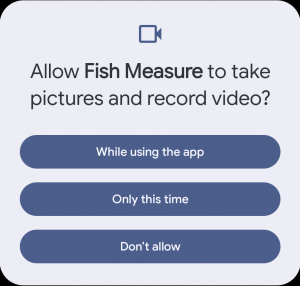
This app uses the camera function. You must grant permission for the app to use the “Camera” function in the app permissions.
When you first launch the app, you will be asked, “Allow FIsh Measure to take pictures and record video?” Select “While using the app.” After that, you will not be asked again. If permission is not granted, this app will not launch.
Each screen
Main Screen (Measurement Screen)
This is the main screen that appears when you launch the app.
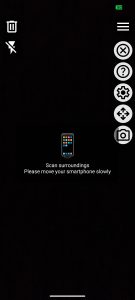
First, the surface must be recognized; when this is happening, a smartphone icon 📱 will appear. While this icon is displayed, slowly move your smartphone from left to right and right to left so that the fish (or object) you want to measure is centered on the screen, with the surrounding area visible. Once surface recognition is complete, the smartphone icon will disappear, and a ⦿ icon will appear in the center of the screen. If the center of the screen is recognized as a flat surface,  will appear; if not,
  will appear. Additionally, the recognized area will be displayed with grid lines or a semi-transparent white outline. Tap that area to display the measurement ruler. If the recognized flat surface is too narrow, slowly move your smartphone while centering the area you want to expand. Once recognized, will appear, and the area displayed with grid lines or a semi-transparent white outline will expand.
Up to two measuring sticks can be placed on the screen. Placing two sticks will display the distance between them.
To measure a fish’s total length, place the first stick at the tip of the fish’s head and the second at the tip of its tail fin. The total length will then be displayed.
Tapping the label displaying the total length will show the total length in both cm and inch units at the bottom of the screen. Tapping the label again will hide the bottom display.
For large fish, holding your smartphone horizontally makes it easier to capture the entire fish.
Placed measurement sticks can be moved. Tap the measurement stick you want to move to select it (a gray circle will appear around the stick). Hold the tap and move it to the desired location. Moving the ruler automatically calculates and displays the distance between the two points.
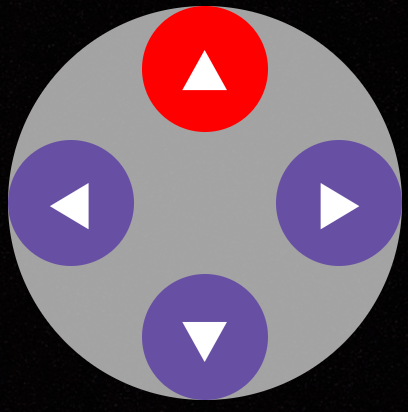
Sometimes, when trying to move a ruler manually, your finger may overlap, preventing you from moving it precisely where you want. In this case, select “Fine Adjustment” from the menu (explained later). This displays a cross key. Tap the ▲ in the direction you want to move to adjust the ruler incrementally. Holding down the cross key allows continuous movement. You must select the stick you want to move before tapping the cross key.
The top-left corner of the main screen displays features commonly used during measurements.
- Clear
Tap this icon to delete the measuring stick and other items, allowing you to restart the measurement from the beginning. - Flashlight

Tap this icon to turn on the flashlight. Turn on the lights when it’s dark outside.

Menu
The following functions required for measurement can be called.
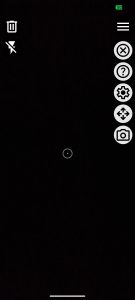
- Menu
Tapping this icon allows you to control the display or hiding of the icons described below. - Exit
Tap this icon to close the app. - Help
Tapping this icon will display a dialog to open the Help and Privacy Policy page. - Settings
The settings screen will appear. - Fine-tuning
You can show or hide the cross keys for fine-tuning the measurement bar’s position. Select the measurement bar and tap a cross key to move it in that direction. Press and hold to move it continuously in that direction.
- Screenshot
You can save the image displayed on the screen as a JPEG file.
*Screenshots may not appear in Google Photos. If this happens, check Google Photos Help. Alternatively, launch Google Files and look under “Images” in the “Categories” section.



Settings screen
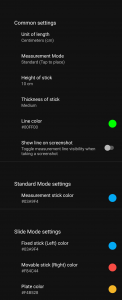
- General Settings
- Units
You can set the unit of measurement for total length. Choose between “centimeters (cm)” and “inches (in).” - Measurement Mode
You can choose from three options: “Standard (Tap to Place),” “Slide (Move stick to Measure),” and “Object Recognition (Automatic detection).” - Length of measuring stick
You can set the length of the measuring stick. Choose from 5cm, 10cm, 20cm, 30cm, or 50cm. When there’s distance to the target (like a fish), a longer stick is easier to see and tap to select. - Thickness of the measuring stick
You can set the thickness of the measurement stick. Choose from Ultra-thin, Thin, Normal, Thick, or Ultra-thick. When there’s distance to the target (like a fish), a thicker stick is easier to see and tap to select. - Line color
You can set the color of the line drawn between measuring sticks. Choose from 15 colors. Set a color that is easy to see based on the surrounding conditions, such as at a fishing spot. - Show line on screenshot
You can choose whether to display measurement lines when taking screenshots. If you don’t want lines to appear over fish (or other objects) when taking a screenshot, set this to OFF.
- Units
- Standard Measurement Settings
- Color of the measuring stick
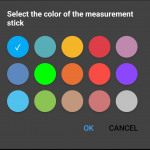
You can set the color of the measuring stick. Choose from 15 colors. Set a color that is easy to see based on the surrounding conditions, such as at the fishing spot.
- Color of the measuring stick
- Slide Measurement Settings
- Fixed Stick (Left) Color
You can set the color of the fixed stick positioned on the left. Choose from 15 colors. Please select a color that is easy to see based on the surrounding conditions, such as the fishing spot. - Movable Stick (Right) Color
You can set the color of the movable stick positioned on the right side. Choose from 15 colors. Please select a color that is easy to see based on the surrounding conditions, such as your fishing spot. - Plate Color
You can set the color of the plate located on the inside between the fixed strick and the movable stick. Choose from 15 colors. Please select a color that is easy to see based on the surrounding conditions, such as your fishing spot.
- Fixed Stick (Left) Color
Privacy Policy
The user information collected by this app
The user information collected by this app is as follows:
(1) Advertising ID
How to obtain
The methods for acquiring user information in this application are as follows:
(1) Acquired using the standard APIs of the Android platform.
Purpose of Use
(1) Advertising ID This service uses advertising IDs for the delivery or display of advertisements. To implement such advertising, we provide user information to the following information collection module providers.
Google Analytics https://marketingplatform.google.com/about/analytics/
Firebase https://firebase.google.com/
AdMob https://admob.google.com/
Google Play Services for AR (ARCore) user privacy requirements
This application runs on Google Play Services for AR (ARCore), which is provided by Google and governed by the Google Privacy Policy.
ML Kit user privacy requirements
This application uses Google’s “ML Kit” to provide machine learning features and improve quality.
The usage statistics collected are managed in accordance with Google’s Privacy Policy.
Please note that since ML Kit’s features are processed on-device, data such as images and text you enter is never sent to or stored on Google’s servers.
The ML Kit Privacy Policy applies.
Installation
Please install this application from Google Play.
